Select Next
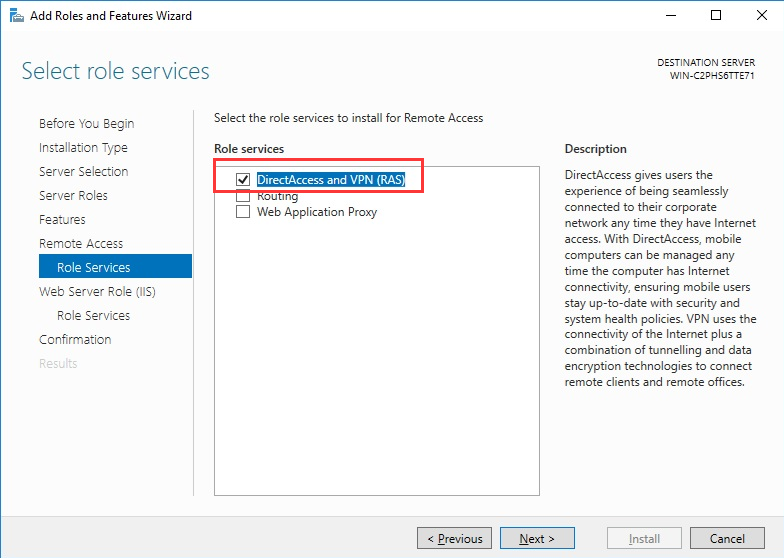
- Select DirectAccess and VPN (RAS) under Role Services
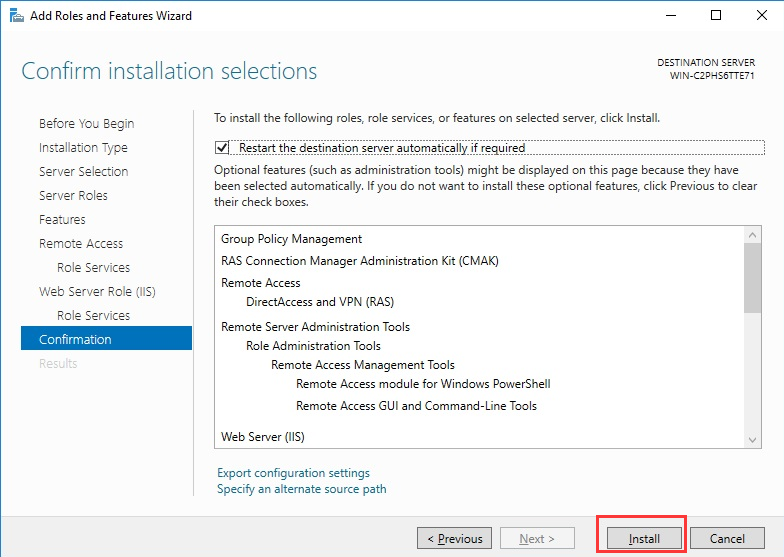
On the next steps just use the default settings. After that you can have a look at the overview screen and install the role.
Select Next
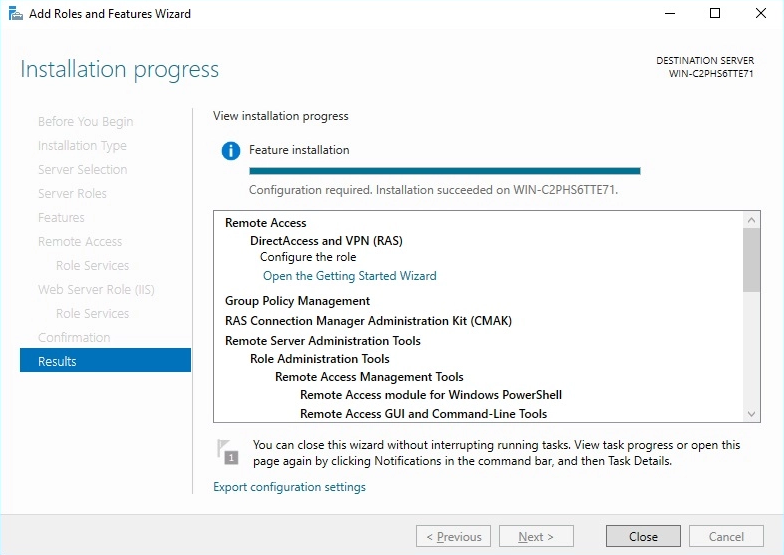
- Once the Role installation completes you can use the Getting Started Wizard to complete the VPN configuration.
- Select Deploy VPN Only
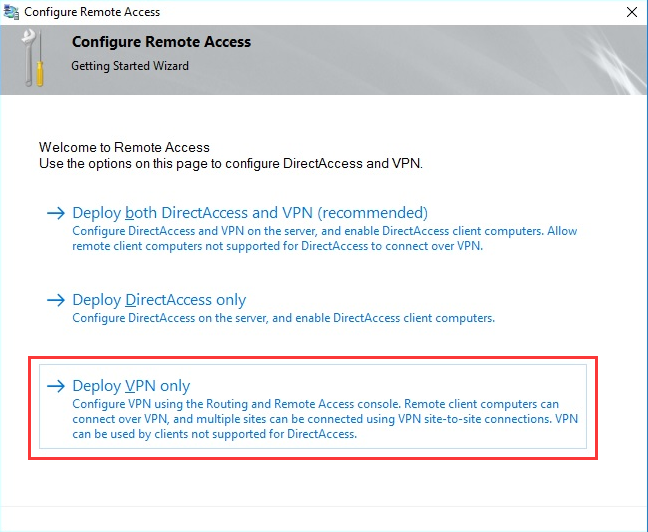
This opens the MMC for Routing and Remote Access
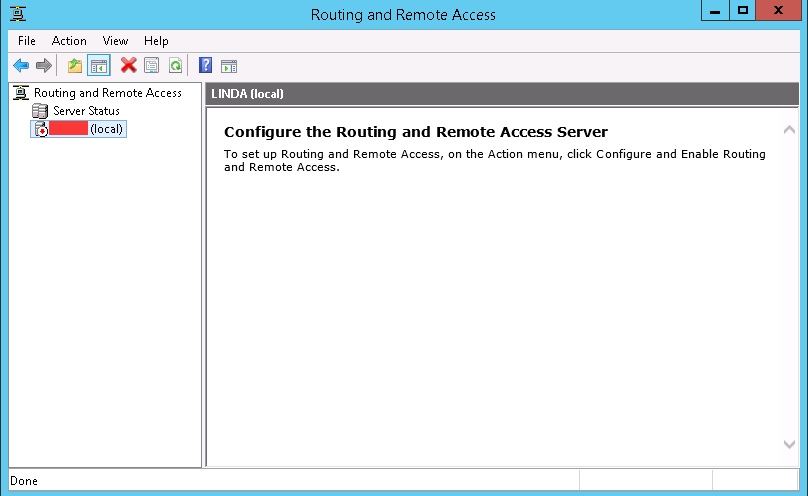
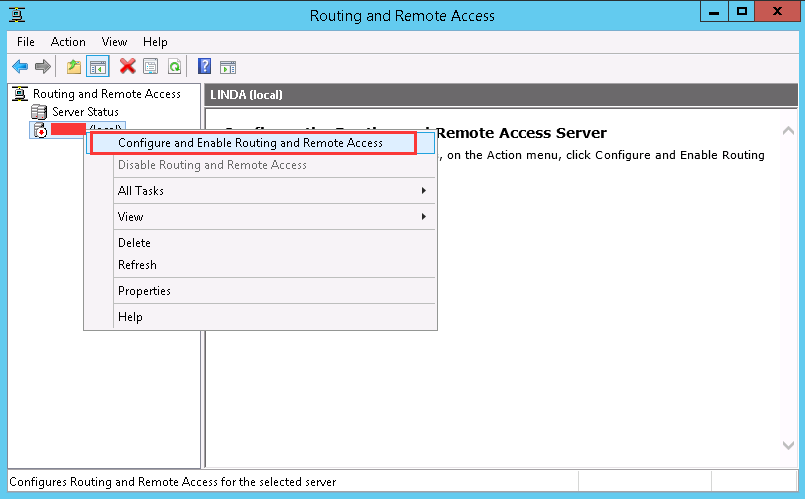
- Right click the server and select Configure and Enable Routing and Remote Access
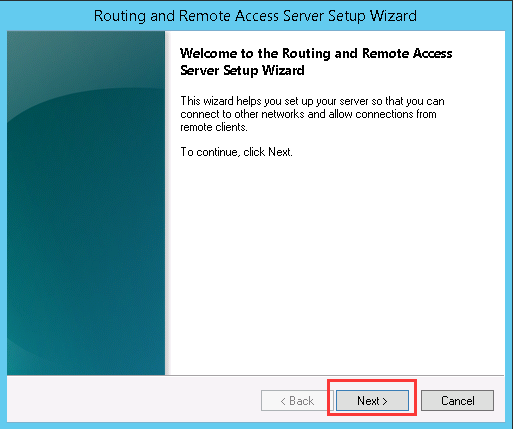
This launches the Setup Wizard
- Since their is only one network interface you will need to choose Custom Configuration
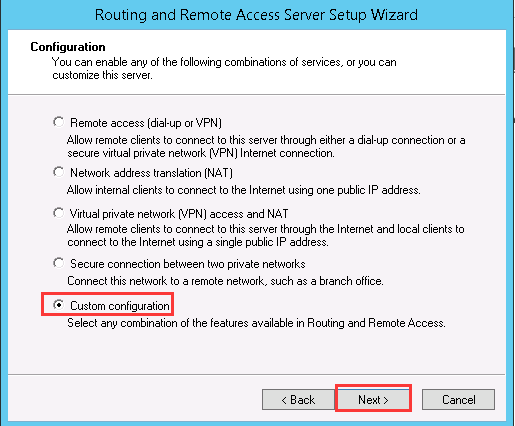
Select Next
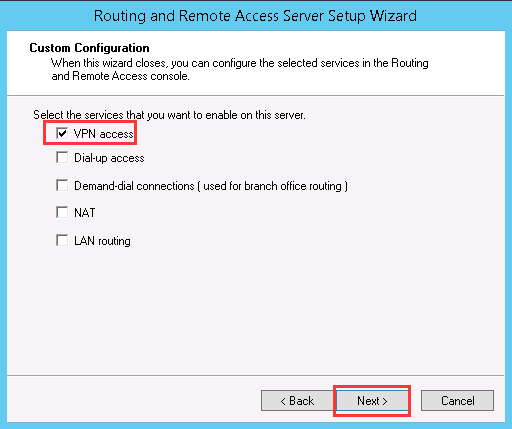
Select Next
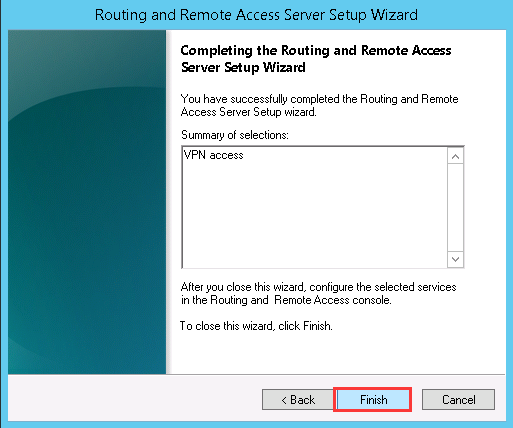
Firewall Settings
Now that your VPN installation is complete you will need to modify your Windows Firewall to allow the VPN traffic You will need to open the following ports.
- For PPTP: 1723 TCP and Protocol 47 GRE (also known as PPTP Pass-through
- For L2TP over IPSEC: 1701 TCP and 500 UDP
- For SSTP: 443 TCP
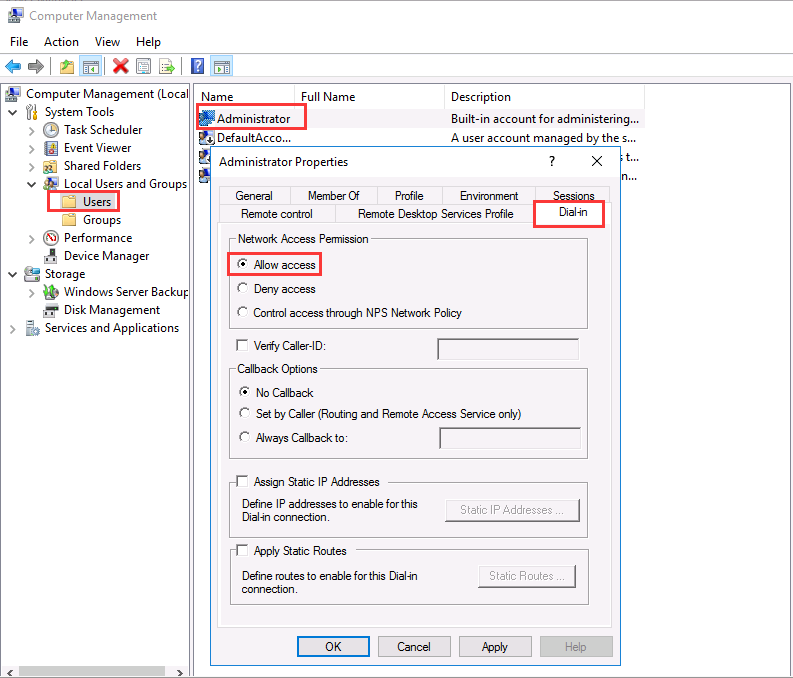
Enabling Users on VPN
You will need to enable users to Dial-in On a standalone server (default) this can be done in the Computer Management MMC, if you are in a domain environment you can do this in the User properties of Active Directory.
Defining a Static Address 'pool'
Since you don’t have a DHCP Server in our VPS Environment you have to add a static address pool.
- Right click on the Remote Access server and select Properties
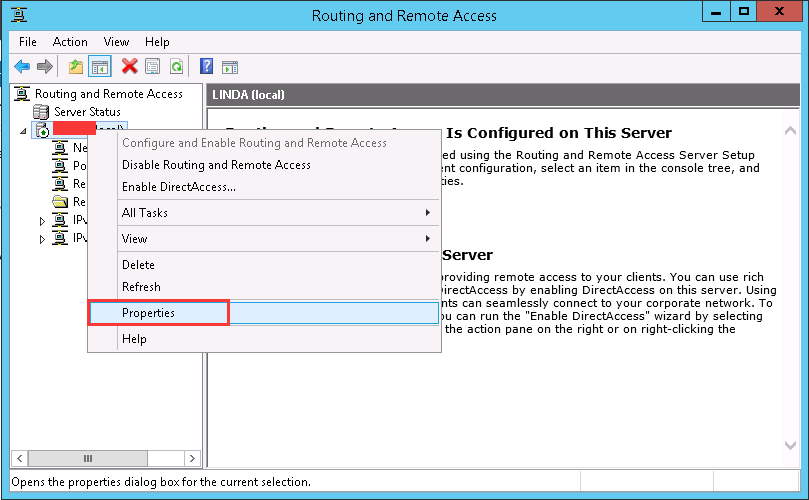
- Select the IPv4 tab and select Static address pool
- Add your IP range eg. 192.168.100.100 - 192.168.100.200(user-defined).
-
Printer and File Sharing through VPN
You may run into some issues with printer and file sharing you can do the following to resolve this issue.
- You can use gpedit.msc to change the settings.
- Computer Configuration->Windows Settings->Security Settings->Network List Manager Policies-> VPN Connection
- Change the location type to Private

Additional Notes by Jone:
1) If VPN client requires to access internet from the VPN server, the Rouing role service must be installed. And add network adapter in Routing and Remote Access.
2) If OS of the VPN server is earlier than Windows Server 2016, additional policy must be added to permit VPN traffic (Remote Access Server(VPN-Dial up) ) in:
Administrative Tools-Network Policy Server-Policies-Network Policies
3) Main steps above are for PPTP VPN. For L2TP VPN, if VPN client or VPN server connects to internet behind NAT, please update registry to allow L2TP traffic behind NAT:
HKEY_LOCAL_MACHINE\SYSTEM\CurrentControlSet\Services\PolicyAgent
Create a new DWORD 32 type value:
Name: AssumeUDPEncapsulationContextOnSendRule
Data: 2
0 - No connection to servers behind NAT (Default).
1 - Connection where VPN server is behind NAT.
2 - Connection where VPN server and client are behind NAT.
Reboot computer for changes to take effect.
Refering link: https://www.mysysadmintips.com/windows/servers/834-setup-l2tp-ipsec-vpn-on-windows-server-2016
4) If VPN client requires to access external FTP, please run command netsh routing ip nat delete ftp.