Summary:
To view your server password in the client area, log in to DBM Client Area
https://console.databasemart.com/, locate your server package, click Manage, go to Overview, and click the eye icon next to Login Password to reveal the password.
Step-by-Step Guide:
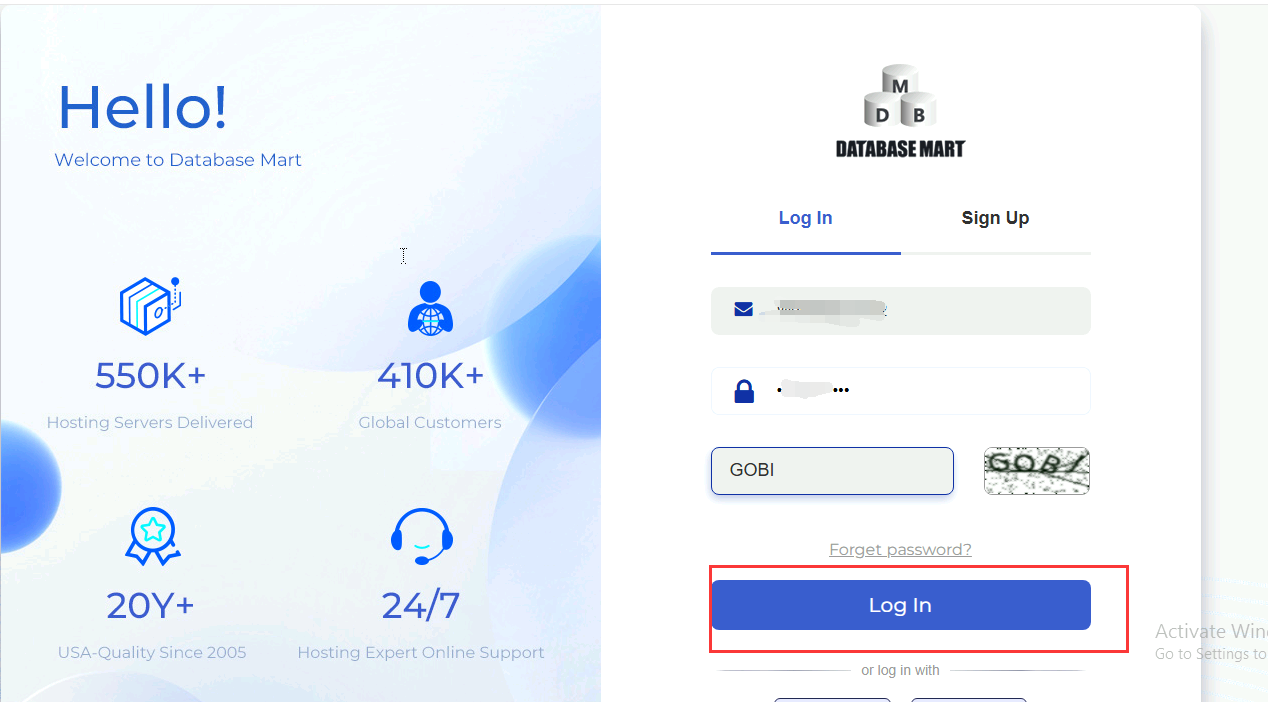
1. Log in to the DBM Client Area
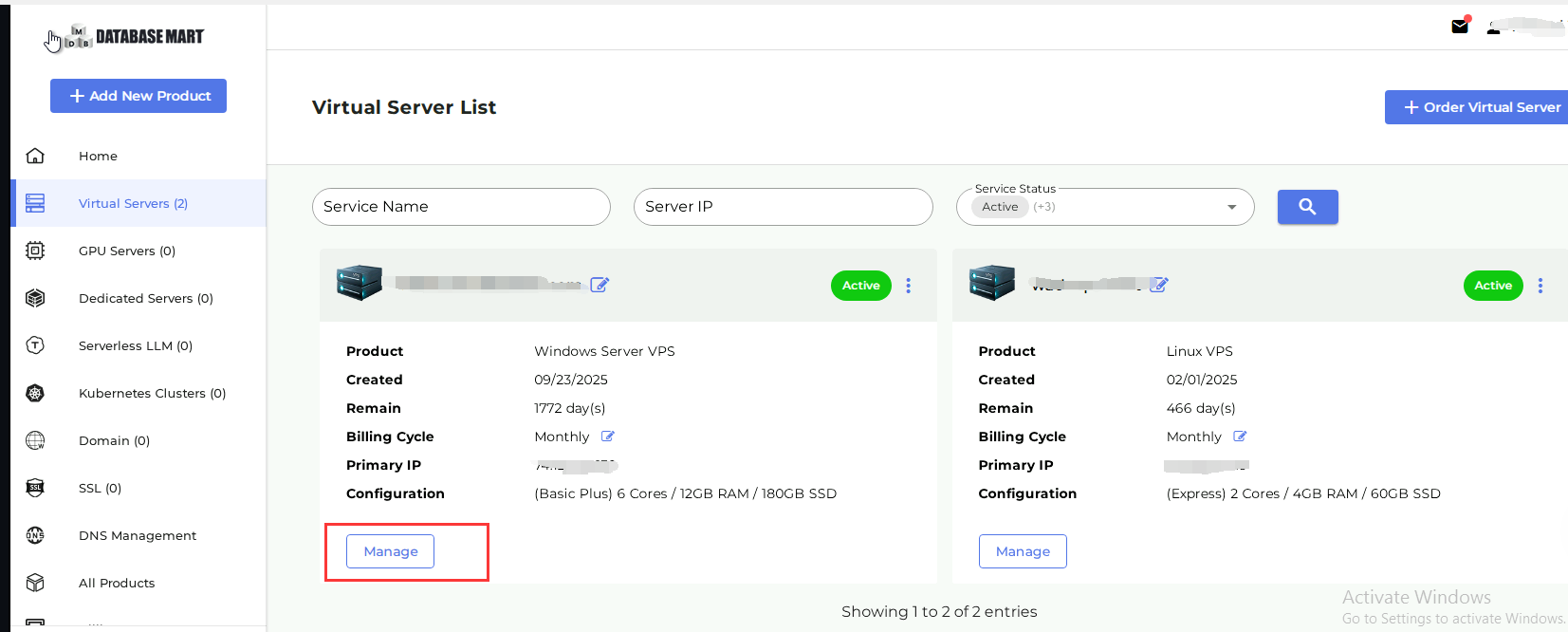
2. Access Your Server Package
Once inside the DBM client area, locate the corresponding server package and click Manage.
3. Reveal Your Server Password
In the Overview section, find the Login Password option and click the small eye icon next to it.
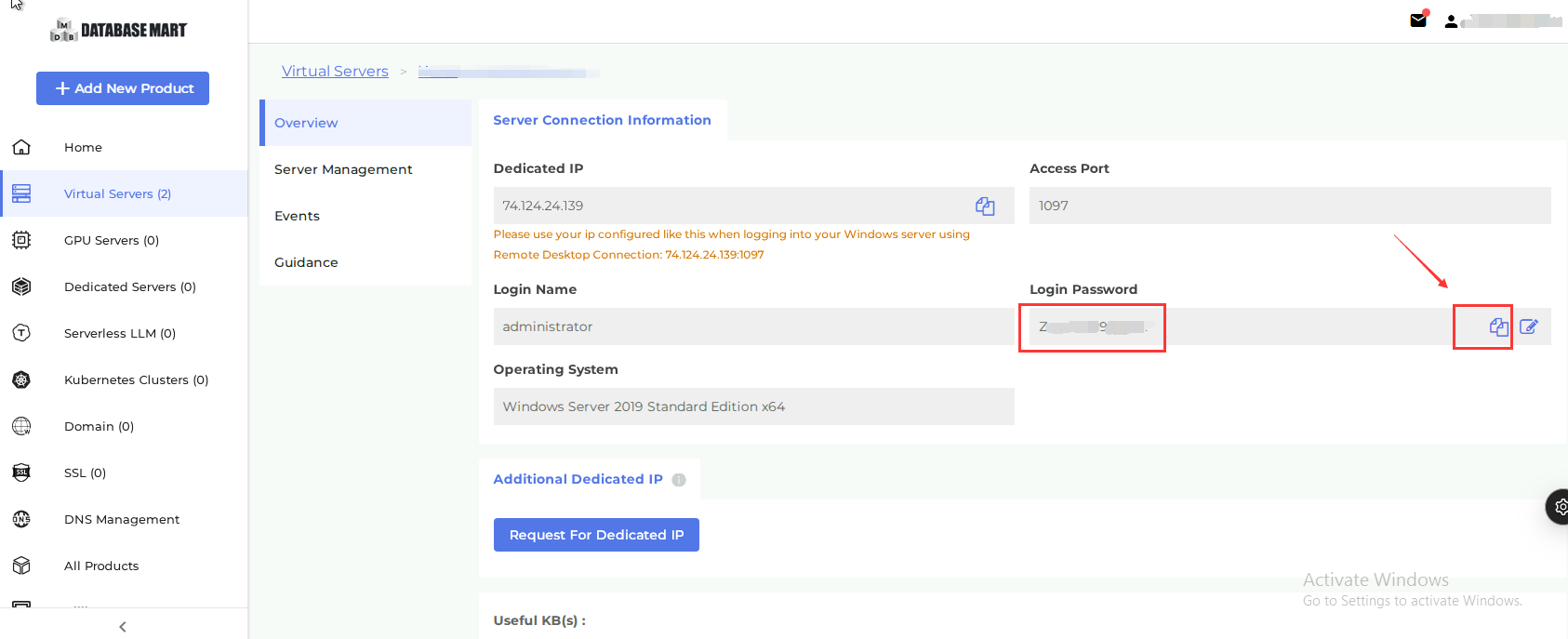
4. Authenticate and Copy Password
Enter your DBM Client Area login password to confirm your identity. The full server password will then be displayed, and you can click the copy icon to copy it
Article ID: 3797, Created: November 20, 2025 at 5:59 AM, Modified: November 20, 2025 at 6:12 AM